Documentation
Overview
What Sift does, how it fits together, and a five-minute quick start.
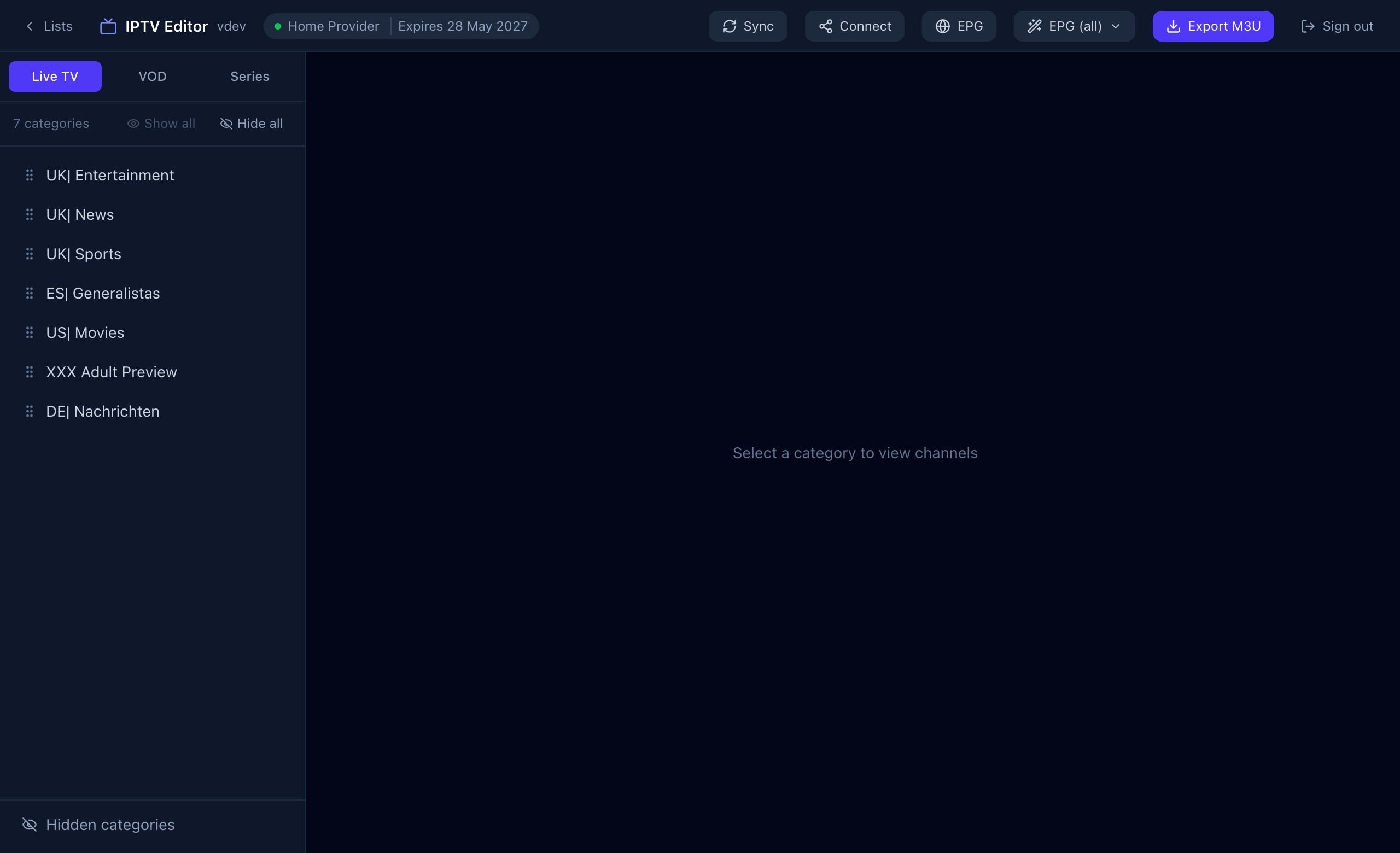
Sift is a manager for the IPTV subscription you already have. You connect your provider once, then rename, hide and reorder channels, attach a TV guide, and point your TV app at Sift instead of at the provider. Every change you make shows up in the app straight away.
How it works
Three things happen, and you only ever touch the first two:
| Step | What you do | What Sift does |
|---|---|---|
| 1. Connect | Enter your provider’s server URL, username and password. | Checks them against the provider and pulls in every category and channel. |
| 2. Sift | Rename, hide and reorder. Attach a TV guide. | Stores your edits next to the provider’s data and applies them on top of it. Nothing is changed at the provider. |
| 3. Watch | Log in to your TV app with the details from the Connect window. | Serves your edited lineup as a normal Xtream Codes service, or as an M3U file. |
Key concepts
| Term | Meaning |
|---|---|
| List | One provider connection (server URL + username + password). You can keep several, for example one per provider or per household. |
| Category | A group of channels, such as “UK| Sports”. Live TV, VOD (movies) and Series each have their own categories. |
| Edit | Anything you change: a new name, a hidden item, a custom order, or an EPG assignment. Edits belong to a list. |
| EPG | The electronic programme guide: what is on now and next. It comes from an XMLTV source and is matched to channels by an ID called the tvg-id. |
| Xtream Codes | A common login format for IPTV apps: server URL, username and password. Sift speaks it on both sides. |
Quick start
- Create an account and start the 7-day free trial.
- Press Add List and enter your provider’s details.
- Press Open on the list, choose a category on the left, and start renaming, hiding and dragging.
- Open EPG, press Use provider EPG, then use EPG (all) → Assign EPGs to match the guide to your channels.
- Press Connect, copy the Server URL, username and password into TiVimate, IPTV Smarters or any Xtream app.
Where to next
- Getting started: accounts and your first list, with screenshots.
- Editing categories & channels: the everyday work.
- TV guide (EPG): the part that takes the most explaining.
- Connecting your TV or app: the last step.