Documentation
Getting started
Create an account, start the free trial and add your first provider.
This page takes you from nothing to an editable list. It takes about two minutes.
What you need
- An IPTV subscription from a provider that supports Xtream Codes.
- Three details from the provider: the server URL (for example
http://provider.example:8080), your username and your password. They are usually in the welcome email or the provider’s customer area. - A modern desktop browser. Editing works best on a larger screen because of the three-column layout.
Create your account
- Open the site and press Start free trial (or go straight to
/register). - Enter your email and a password of at least 6 characters, then confirm the password.
- Submit the form. You are signed in straight away. If billing is enabled you are then asked to choose a plan to start your trial.
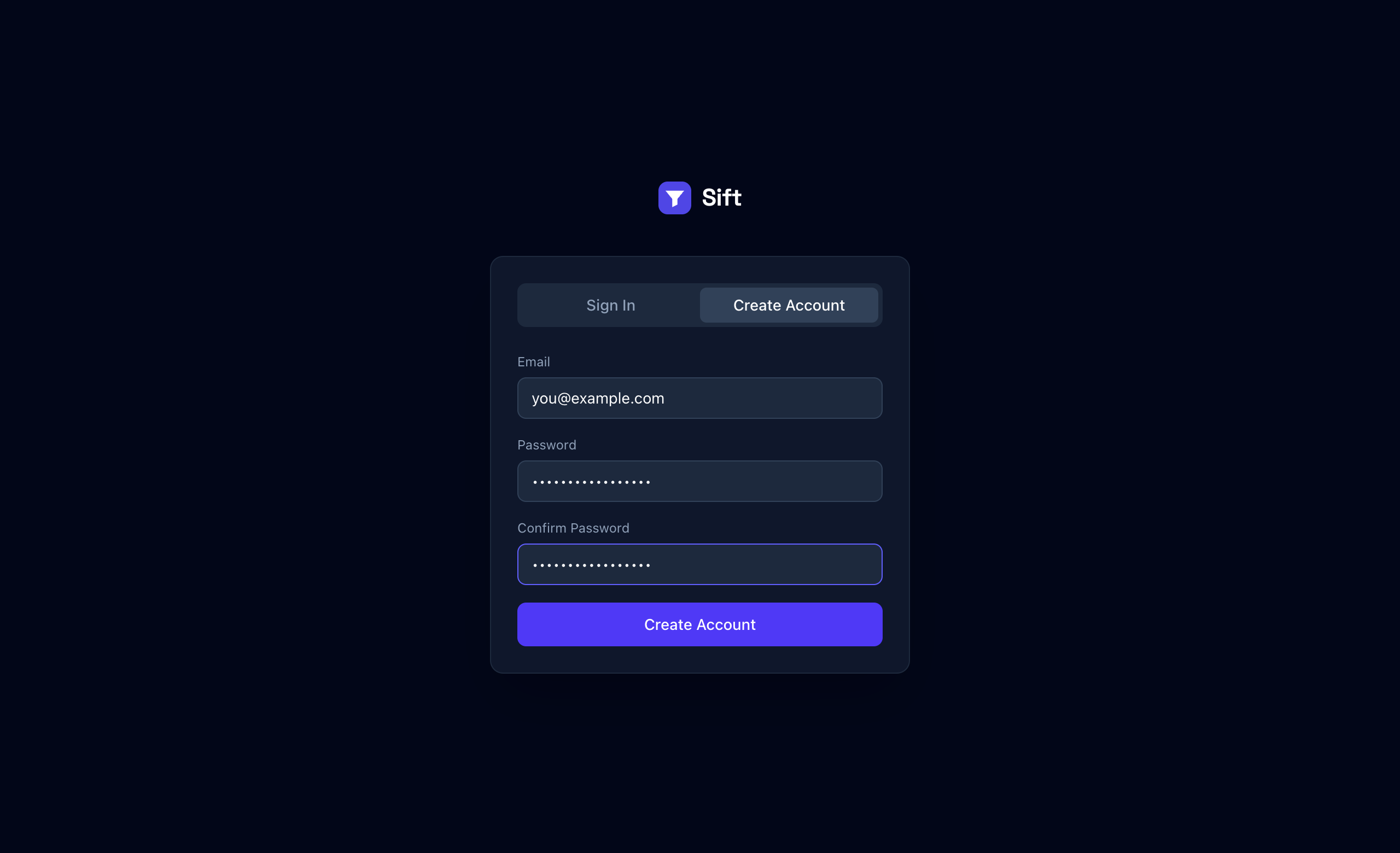
Your 7-day free trial starts when you choose a plan, and you can cancel before it ends without being charged. See Plans & billing for details. Next time, use Sign in at /login. Sessions stay signed in for 30 days.
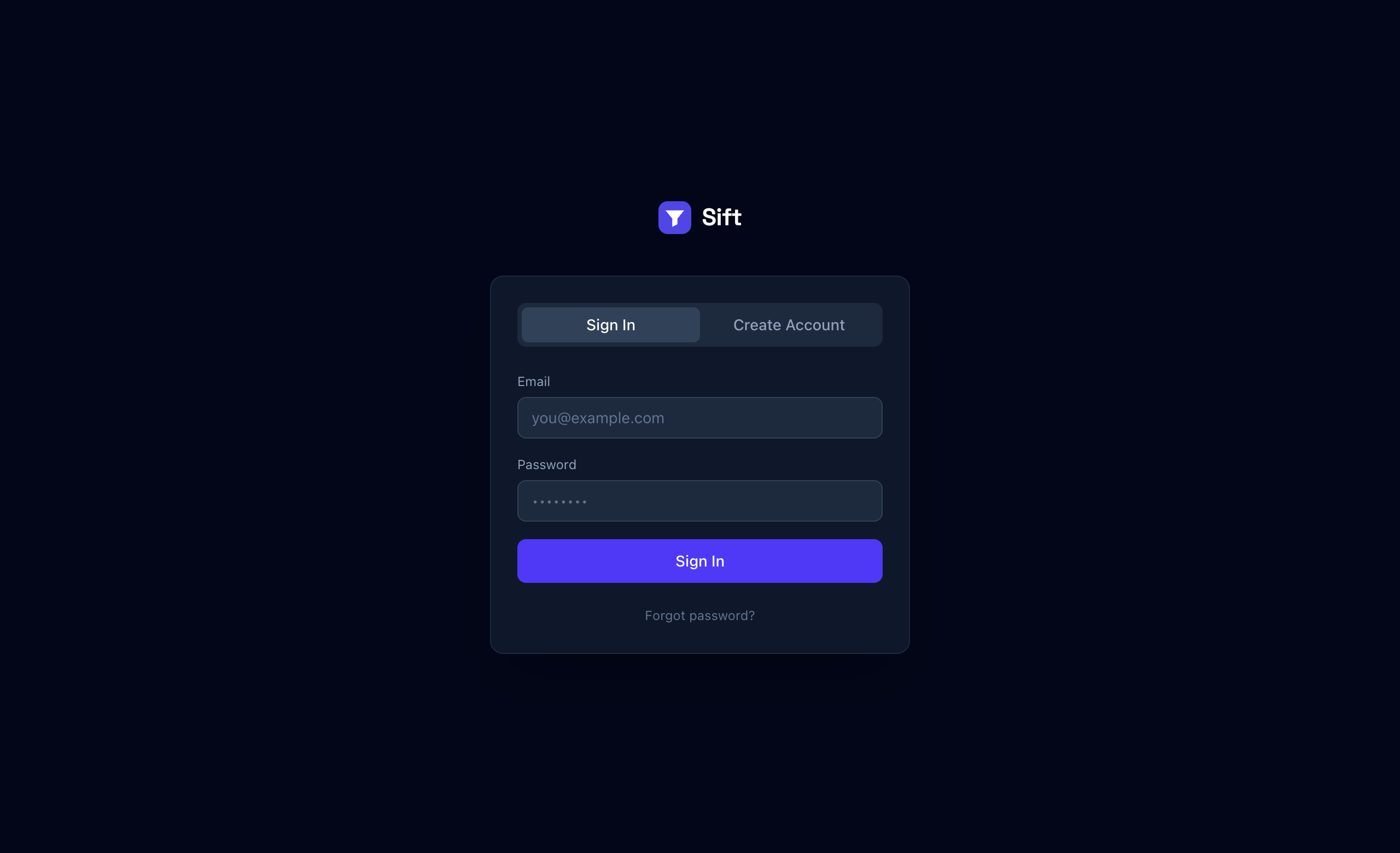
Forgot your password?
Choose the forgot-password option on the sign-in form and enter your email. Sift shows a one-time reset link directly on the page. Open it, enter a new password (at least 6 characters) twice, and sign in. No email is sent.
Add your first list
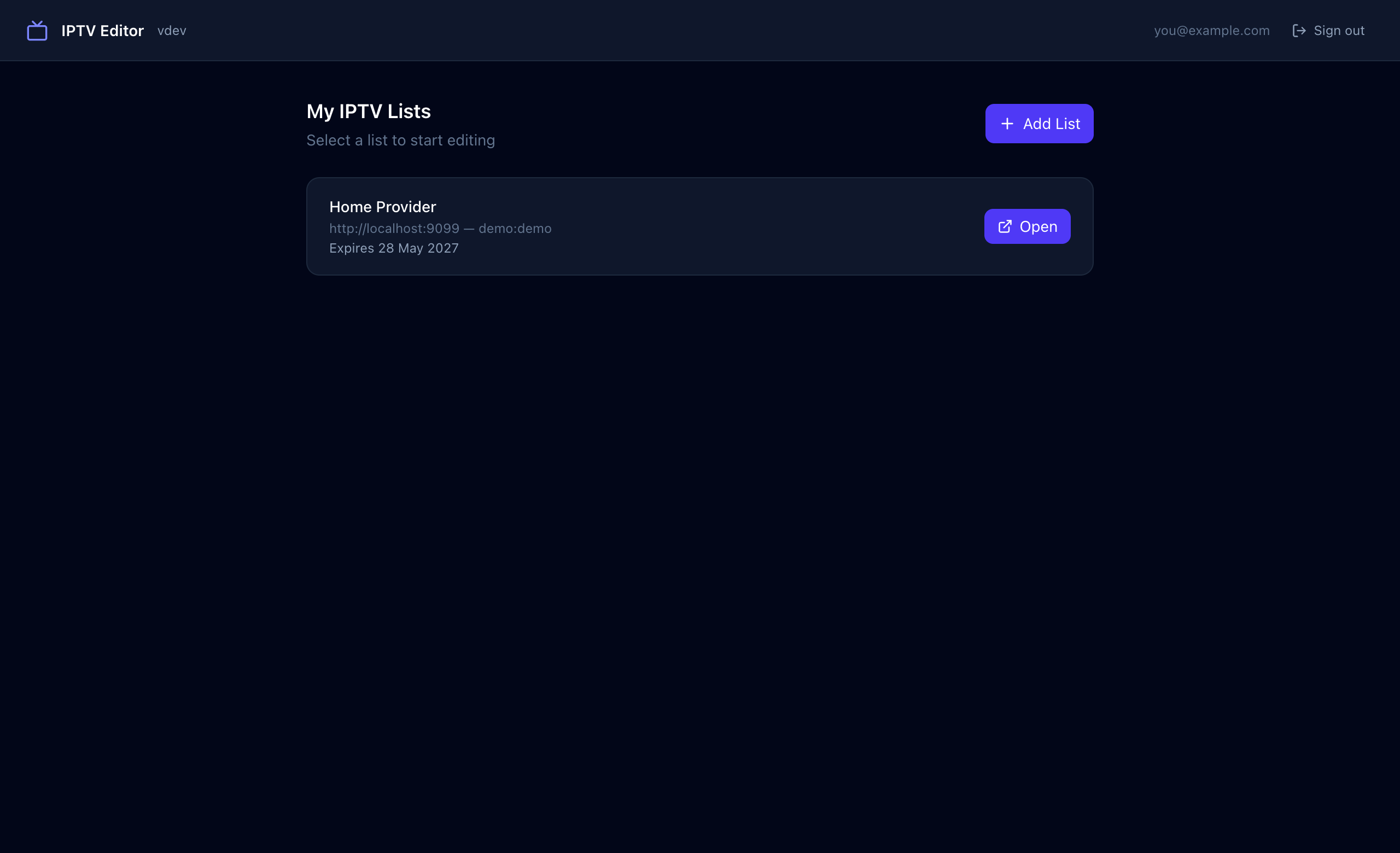
After signing in you land on My IPTV Lists. It is empty at first.
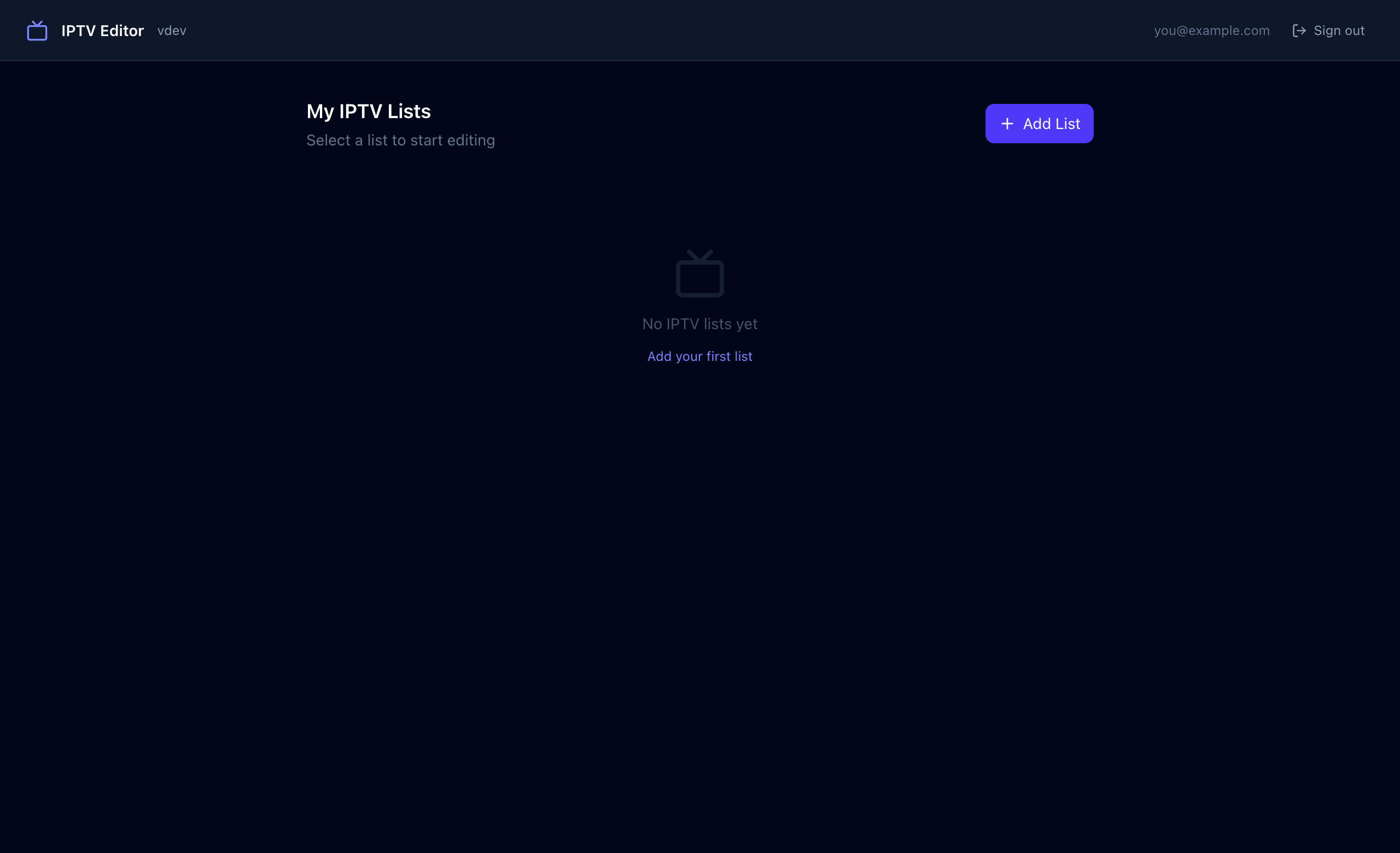
- Press Add List.
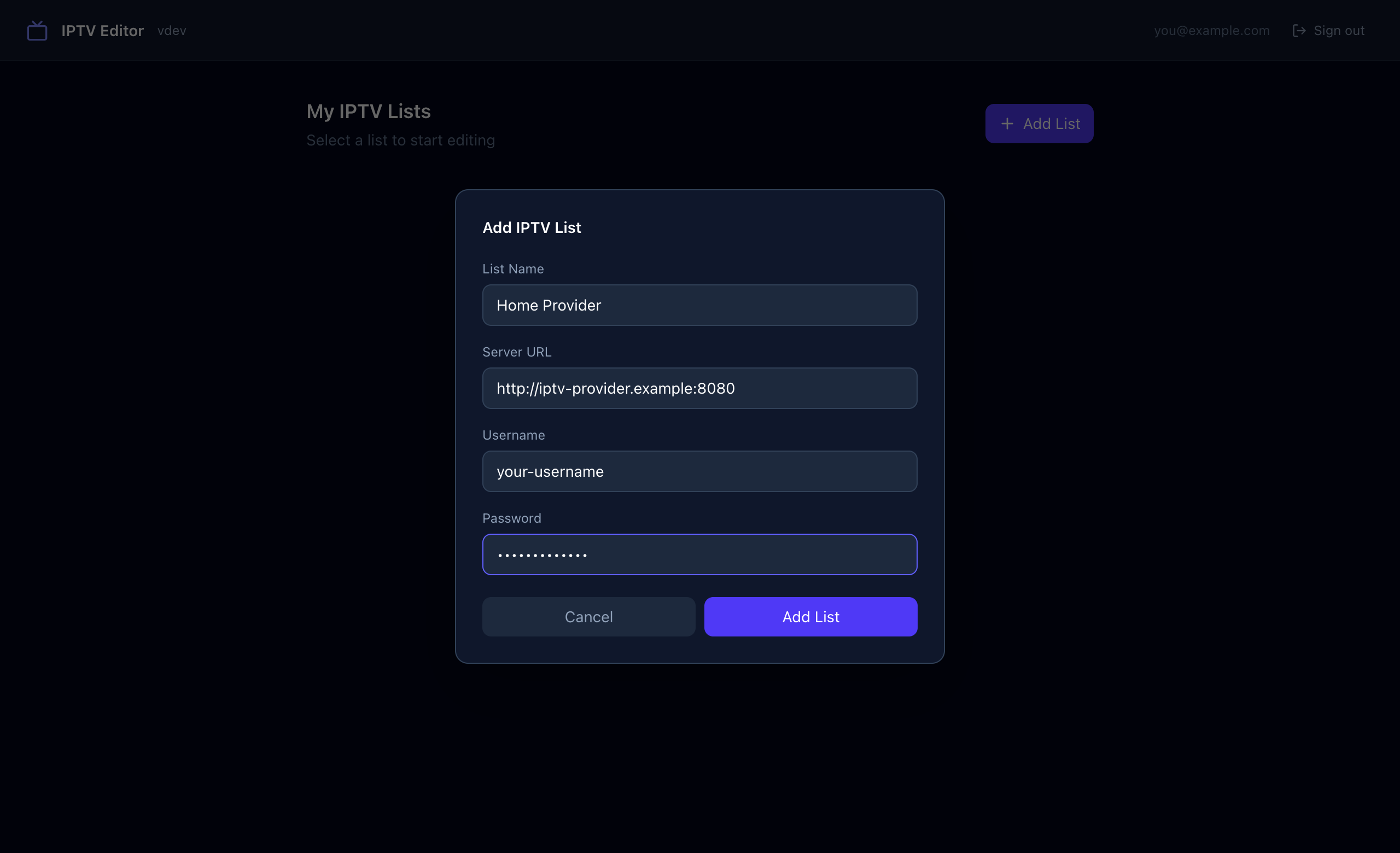
- Fill in the form. List Name is only a label for you, for example “Home provider”. Then enter the Server URL, Username and Password from your provider.
- Press Add List again. Sift tries to log in to the provider with those details.
Open the editor
Your list now appears in the list. Press Open to start editing. The expiry date of your provider account is shown under the list name and again in the editor’s top bar, so you can see at a glance when it runs out.
Continue with Editing categories & channels.