Documentation
Managing lists
Add, open, delete and copy settings between IPTV lists.
A list is one connection to one provider. The list screen, My IPTV Lists, is where you add, open, copy and delete them. Press Lists at the top left of the editor to get back to it.
Adding a list
Press Add List and enter a name, the server URL, the username and the password. See Getting started for the full walkthrough. You can add the same provider twice if you want two independent sets of edits, for example one for the living room and one for the bedroom.
What a list row shows
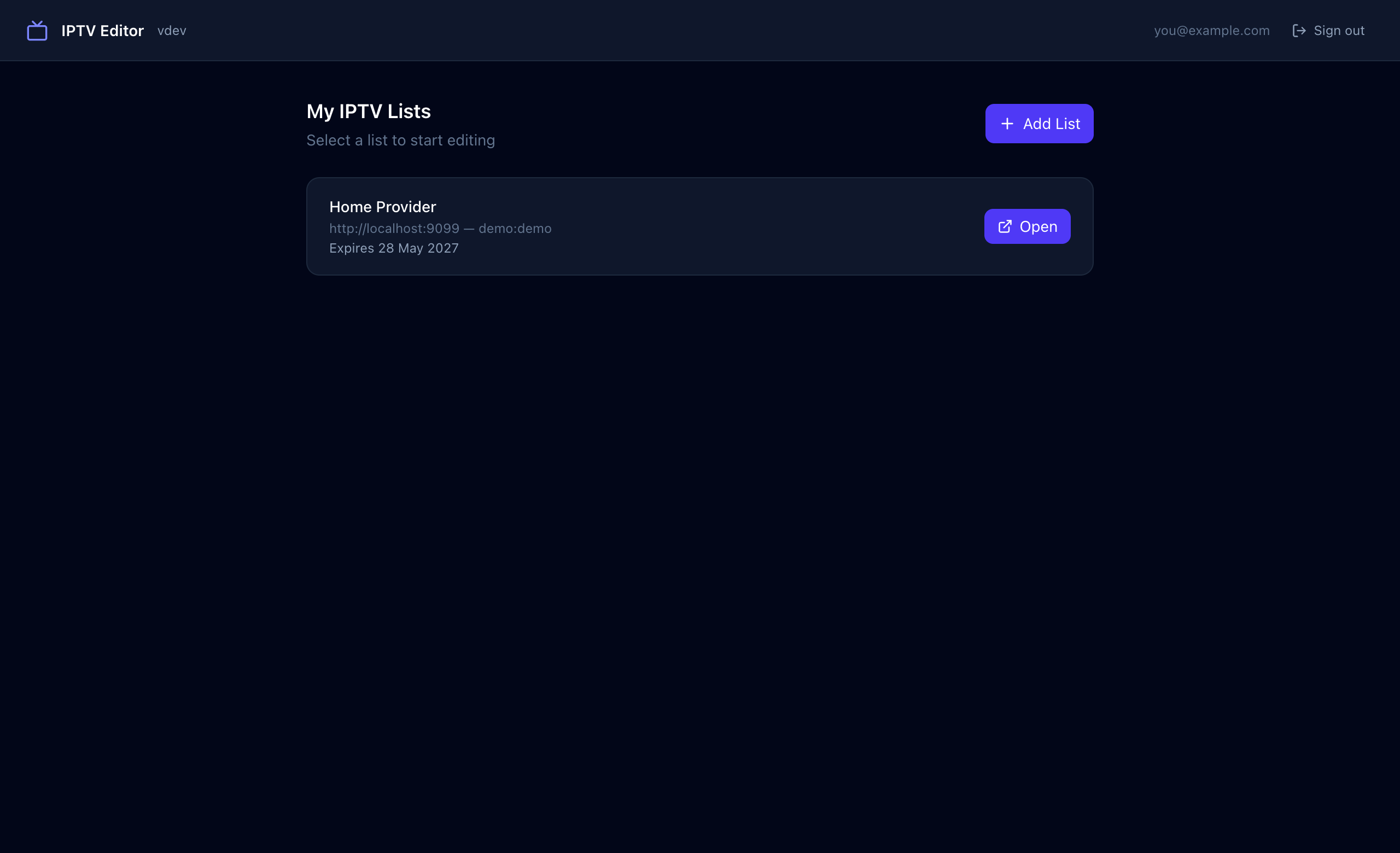
- The list name you chose.
- The provider’s server URL and the username and password you entered, so you can confirm which account it is.
- The account expiry date reported by the provider, in red once it has passed. Press Sync in the editor to refresh it.
- Three buttons. Open is always visible. The copy and delete icons appear when you hover the row.
Copying settings between lists
If you have two or more lists, hover a row and press the copy icon (Copy settings from another list). Choose a source list and press Copy Settings. Sift copies:
- the EPG sources,
- category edits (renamed and hidden categories),
- channel edits, including EPG assignments.
Items are matched by name, because two providers use different internal IDs. Anything that has no matching name in the target list is skipped, and the result tells you how many categories and channels were skipped, plus any warnings.
Deleting a list
Hover the row and press the bin icon. The list and all of its edits and EPG sources are removed straight away, with no confirmation step. Deleting a list in Sift never touches your account at the provider.
How many lists can I have?
| Plan | Lists |
|---|---|
| Pro | Up to 2 |
| Unlimited | No limit |
The header shows how many you have used, for example “1/2 used”. At the limit, Add List is disabled and a notice offers an upgrade. See Plans & billing.