Documentation
TV guide (EPG)
XMLTV sources, Auto EPG, bulk assignment and the programme panel.
The electronic programme guide (EPG) is the “what’s on” data in your TV app. Sift can use your provider’s guide or any XMLTV feed, and it can match guide entries to your channels for you.
Step 1: add a guide source
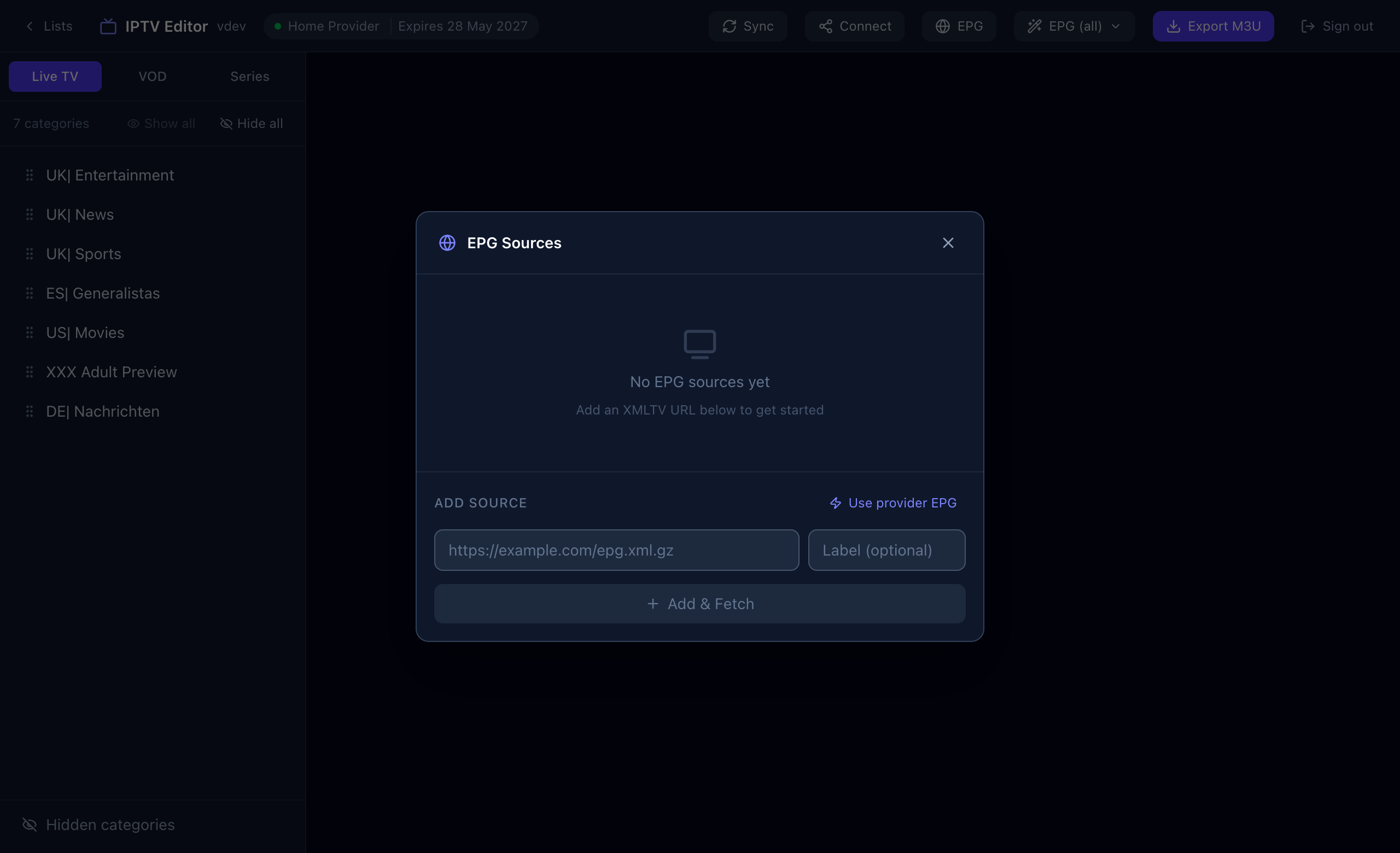
A source is an XMLTV feed, a file that lists channels and their programmes. Open EPG in the top bar.
Use your provider’s guide
Press Use provider EPG. Sift builds the provider’s XMLTV address from your login and loads it. This is the quickest start and often enough.
Add your own XMLTV URL
- Paste the feed address into the URL box. Compressed feeds ending in
.xml.gzwork. - Optionally type a label, so you can tell sources apart.
- Press Add & Fetch. Sift downloads the feed and shows how many channels it contains.
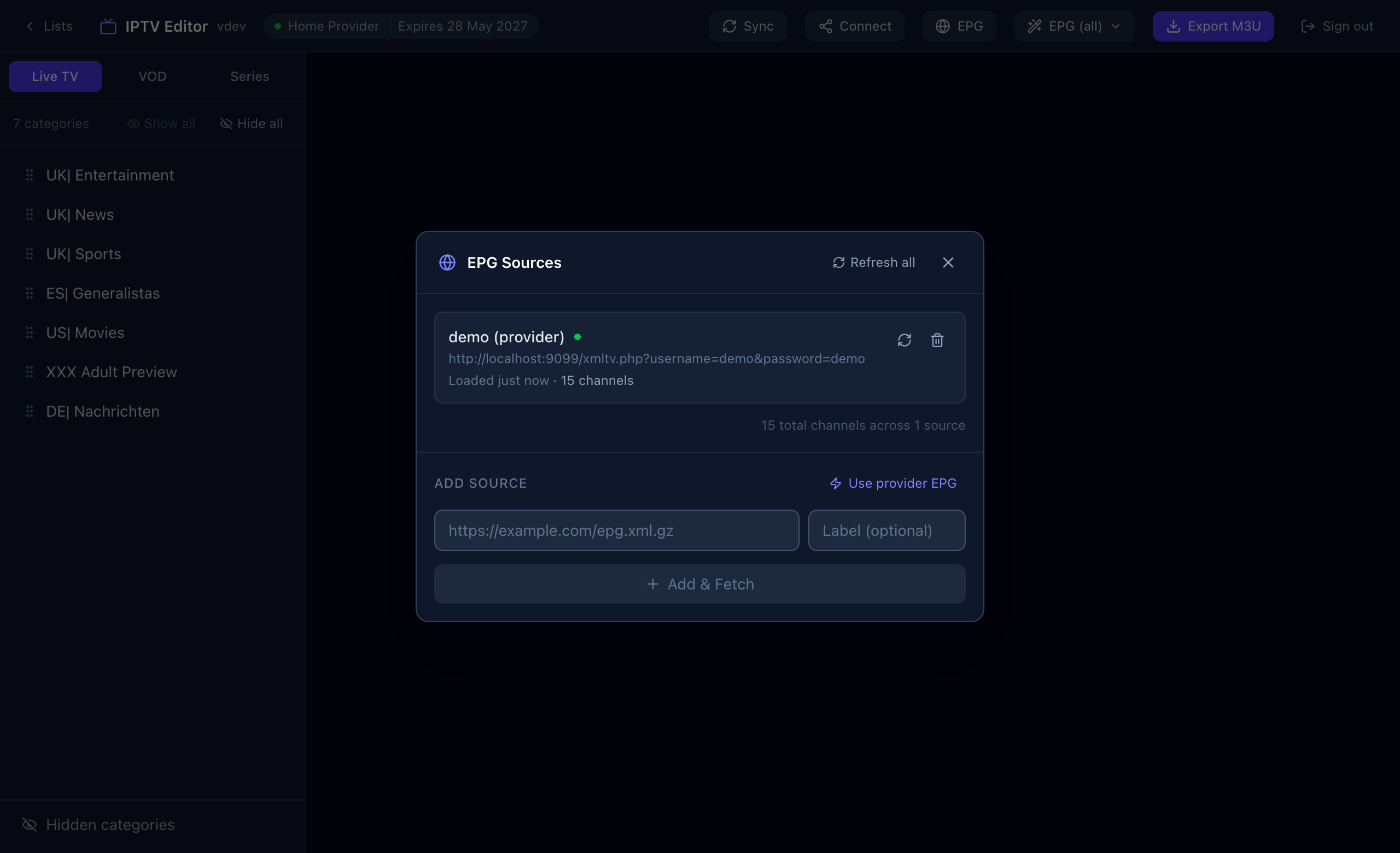
You can have several sources, and Sift uses all of them. In the same window:
- the circular arrow on a source reloads that source, and Refresh all reloads every source;
- the bin removes a source;
- a status dot shows whether the source loaded successfully.
Guide data is held in memory and refreshed automatically in the background, so you rarely need to reload by hand. Reload manually after adding a source or if you suspect stale data.
Step 2: assign guide IDs to channels
You have three ways to do it, from broad to precise.
Option A: EPG (all), every visible channel at once
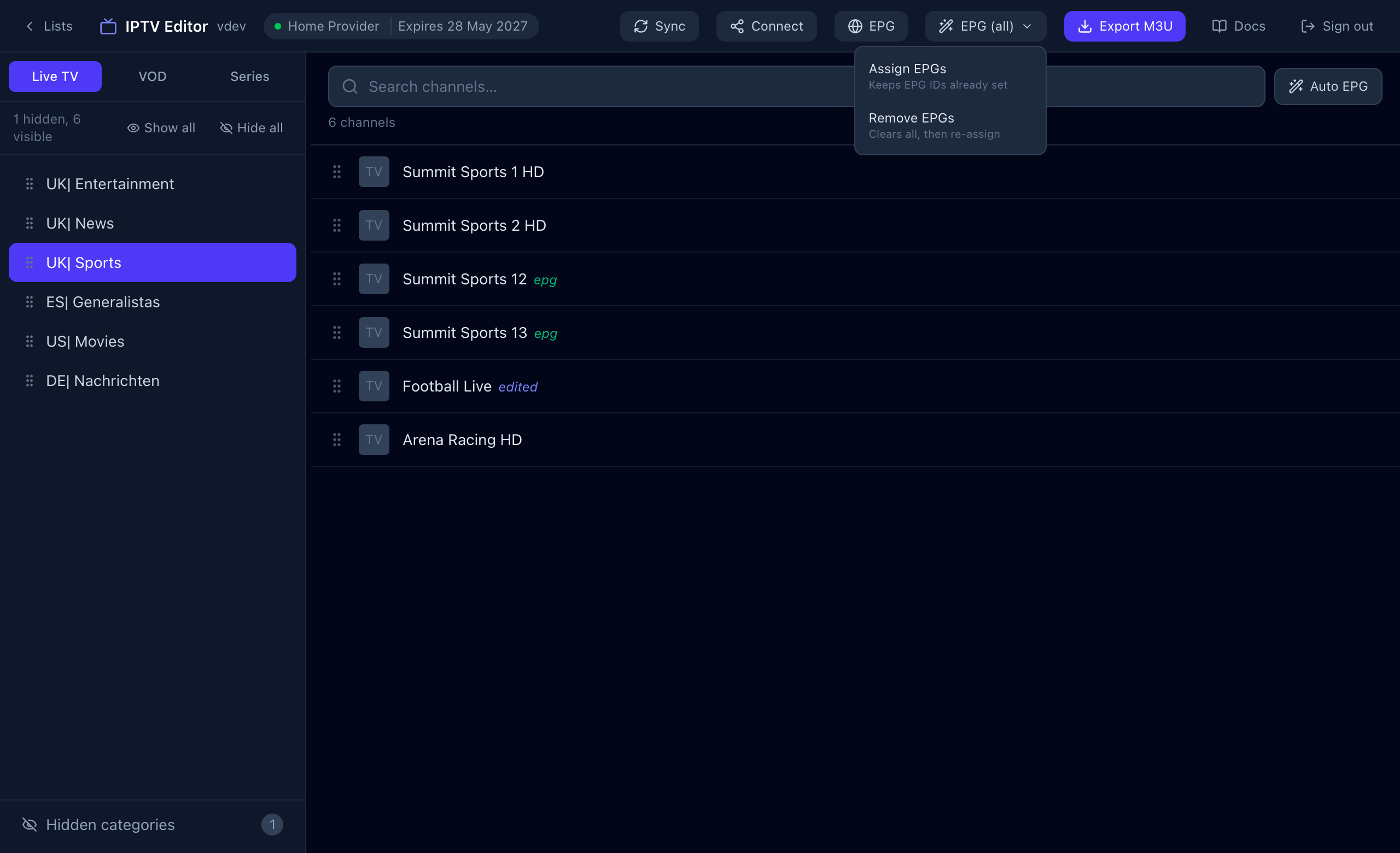
- Choose EPG (all) → Assign EPGs.
- Sift loads your current Live channels from the provider, skips hidden categories, hidden channels and channels that already have an ID, and matches the rest.
- A summary opens: how many were assigned, how many were already set (kept) and how many are unmatched.
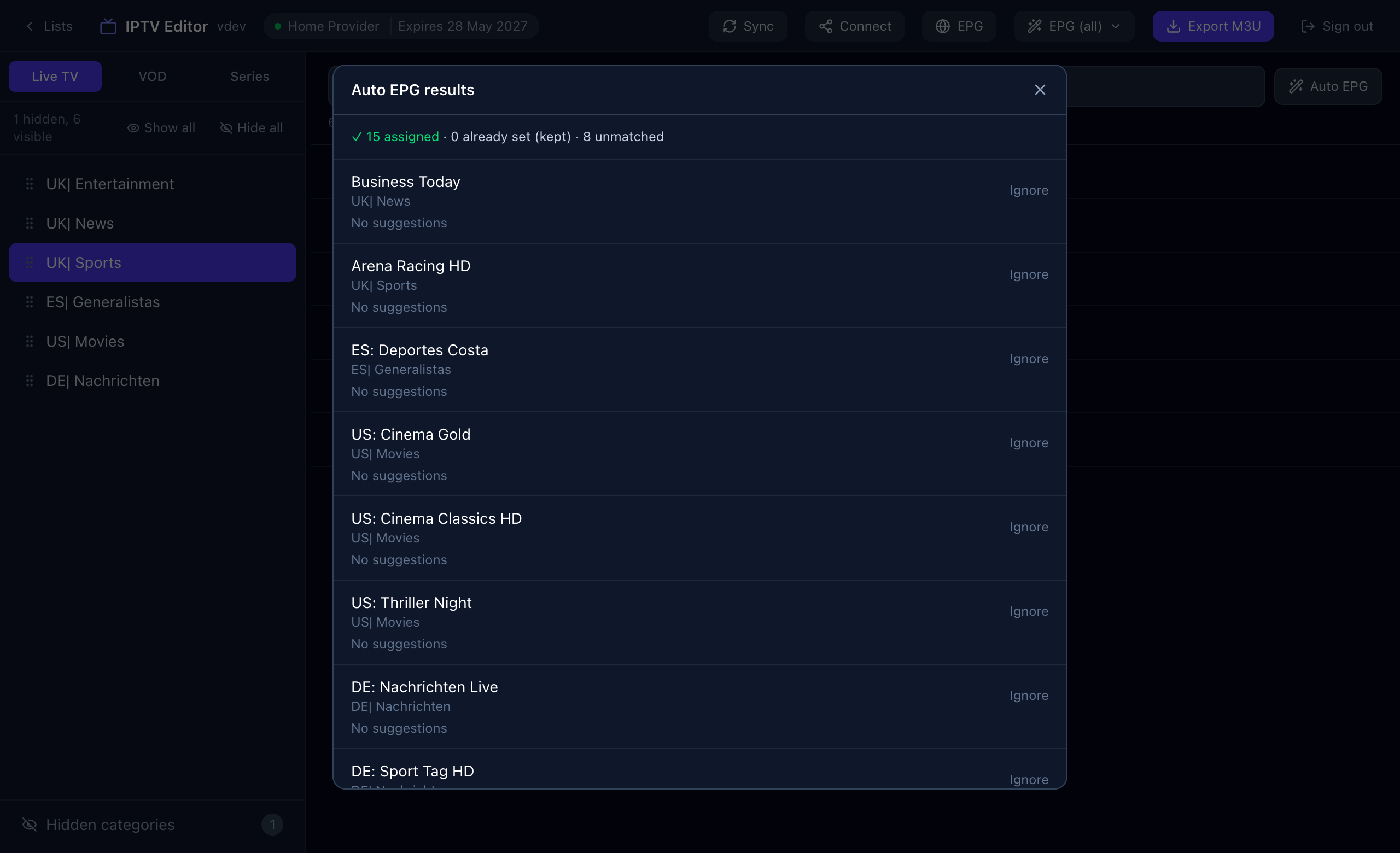
For each unmatched channel the list shows its name and category and, when there are close candidates, clickable suggestions. Pick one to assign it, or press Ignore to leave the channel without a guide. Channels the guide genuinely does not cover are listed without suggestions. Only the first 500 unmatched channels are shown.
Option B: Auto EPG, one category
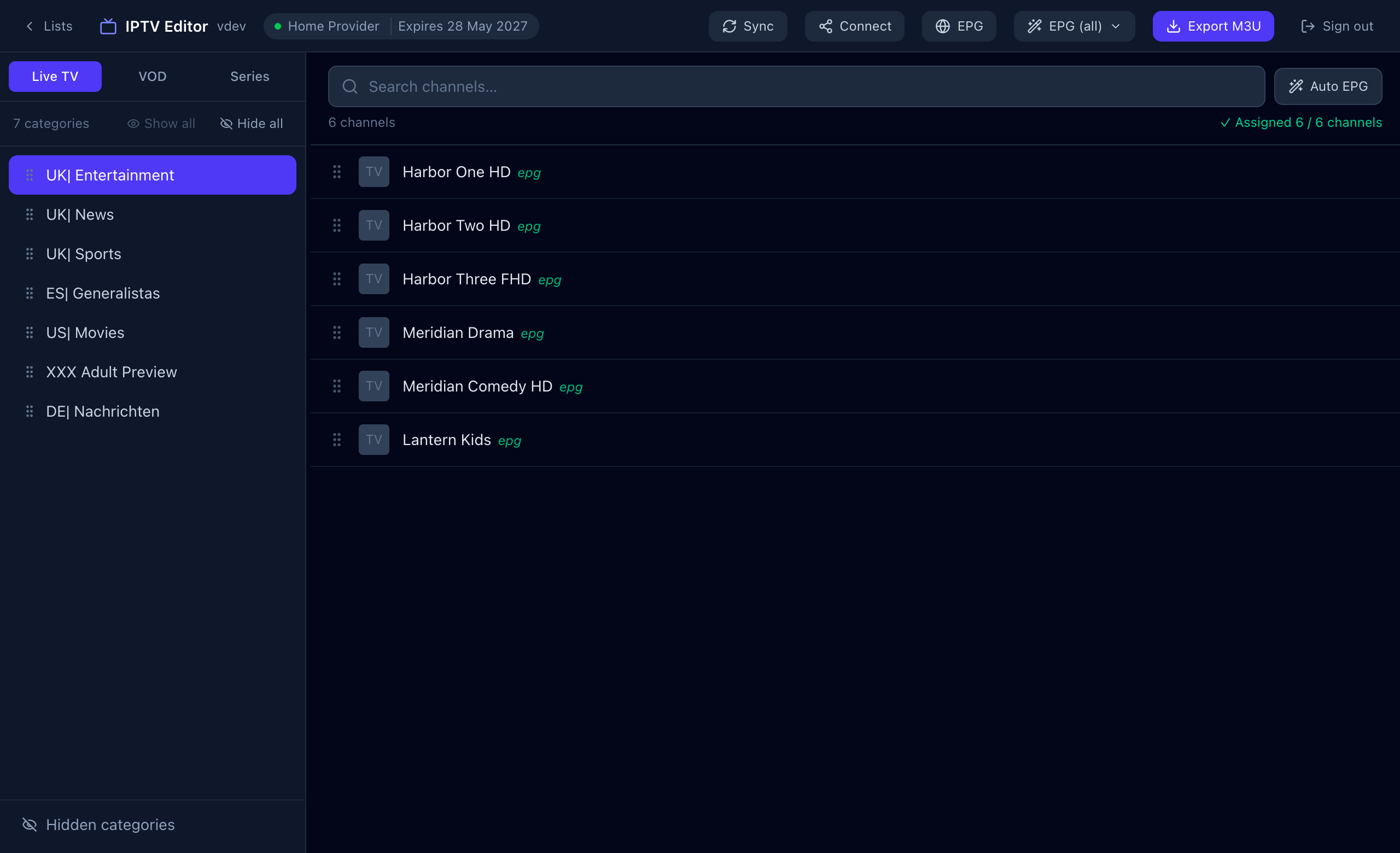
Open a category and press Auto EPG next to the search box. It assigns guide IDs to the channels in that category only and shows a short result message above the list. If no source is loaded you will be told to load one first.
Option C: pick manually
Press the guide icon on a channel (View / edit EPG). A panel slides in from the right.
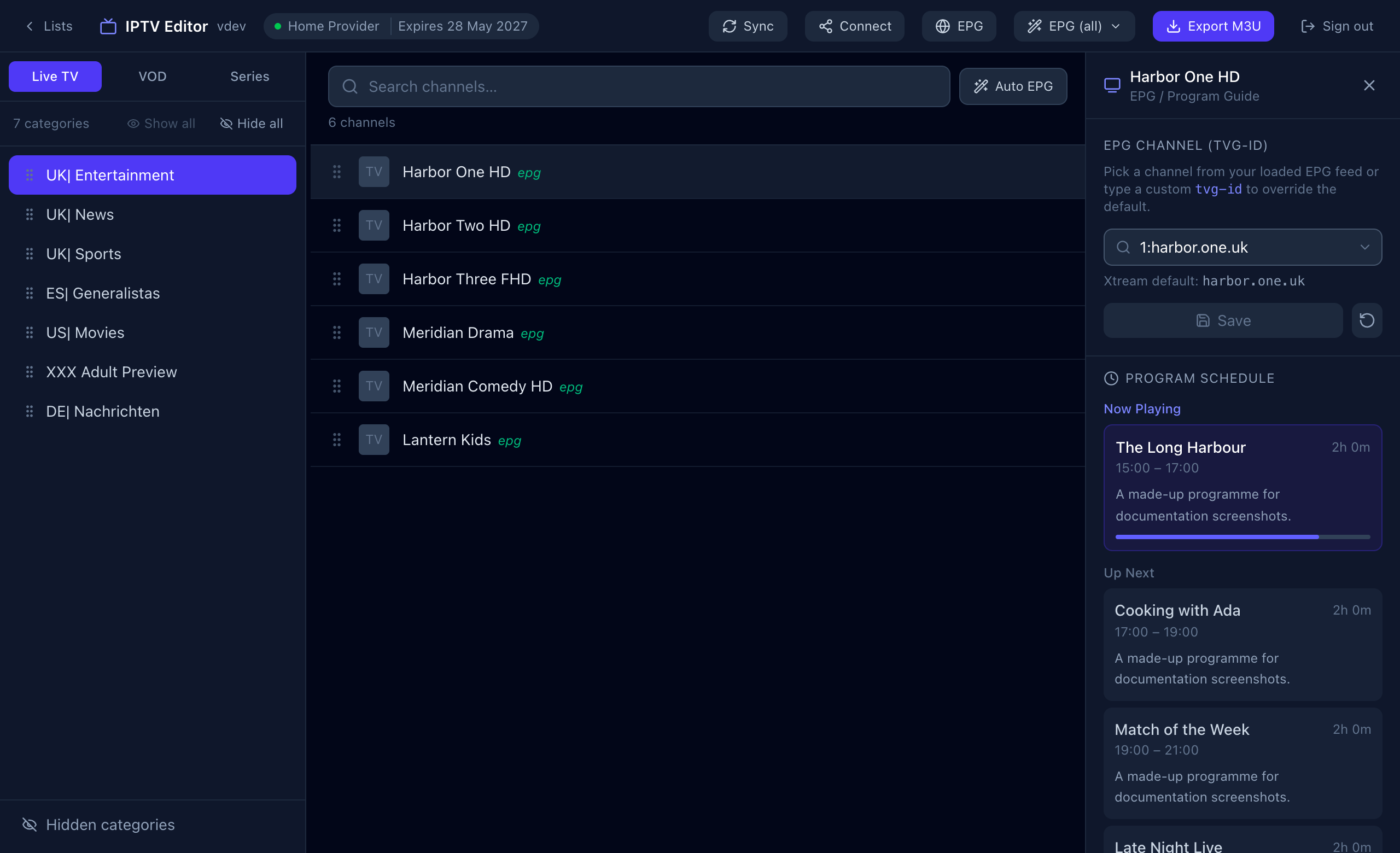
- EPG channel (tvg-id). Search your loaded guide and pick a channel, or type any tvg-id of your own. Press Save.
- Xtream default. The ID your provider supplied is shown for reference. The reset arrow puts it back.
- Program schedule. “Now Playing” with a progress bar, then “Up Next”. A quick way to check that the match is right.
Removing assignments
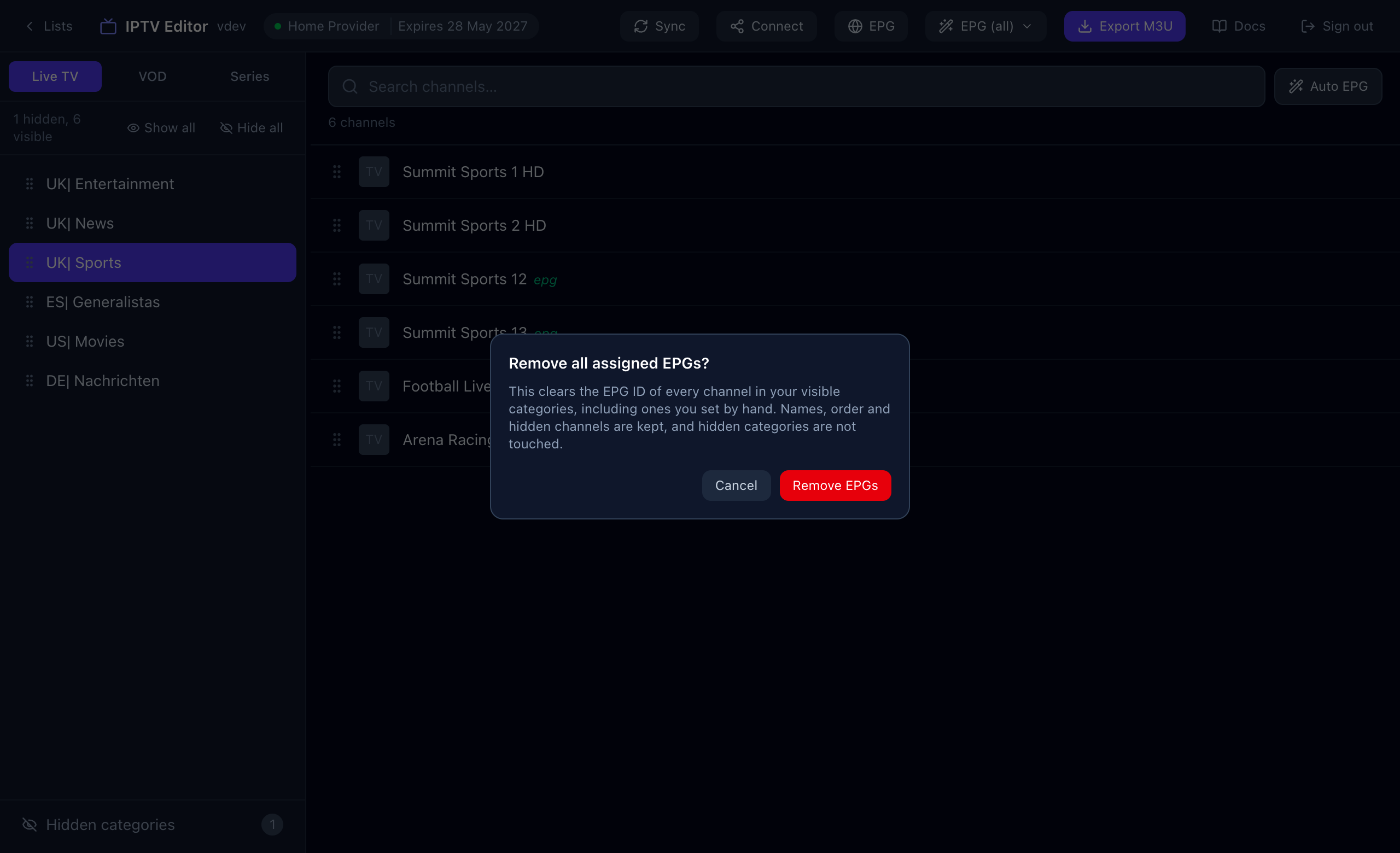
To start over, choose EPG (all) → Remove EPGs. This clears the guide ID on every Live channel in visible categories and keeps names, order and hidden state.
How matching works
You do not need this to use Sift, but it explains the results.
- Country comes from the category name. A prefix like
UK|orES|tells Sift which country’s guide channels to prefer. Channel-name prefixes are deliberately ignored, because providers use them for package names rather than countries. UK and GB are treated as the same country. - Quality tags are ignored. “HD”, “FHD”, “UHD”, “SD”, “4K” and similar do not stop a match, so “Channel One FHD” finds “Channel One”.
- Numbers must agree. “Sports 12” never matches “Sports 13”, and “BBC 1”, “BBC1” and “BBC One” are treated alike.
- Confidence. An exact or near-exact match is assigned automatically. A weaker one is only offered as a suggestion for you to confirm. When Sift is not sure, it leaves the channel for you instead of guessing.
- Aliases. Known alternative names for the same channel are applied, which catches many provider naming quirks.
Tips for a better guide
- Add a second source if many channels end up unmatched. Different feeds cover different channels.
- Run EPG (all) → Assign EPGs again after adding a source. Channels that already have an ID are kept, so it is safe.
- Clean the lineup first. Removing duplicate or unwanted categories means fewer false matches and a shorter review list.
- Not showing in your TV app? See Troubleshooting.