Documentation
Editing categories & channels
Rename, hide, reorder and search Live, VOD and Series.
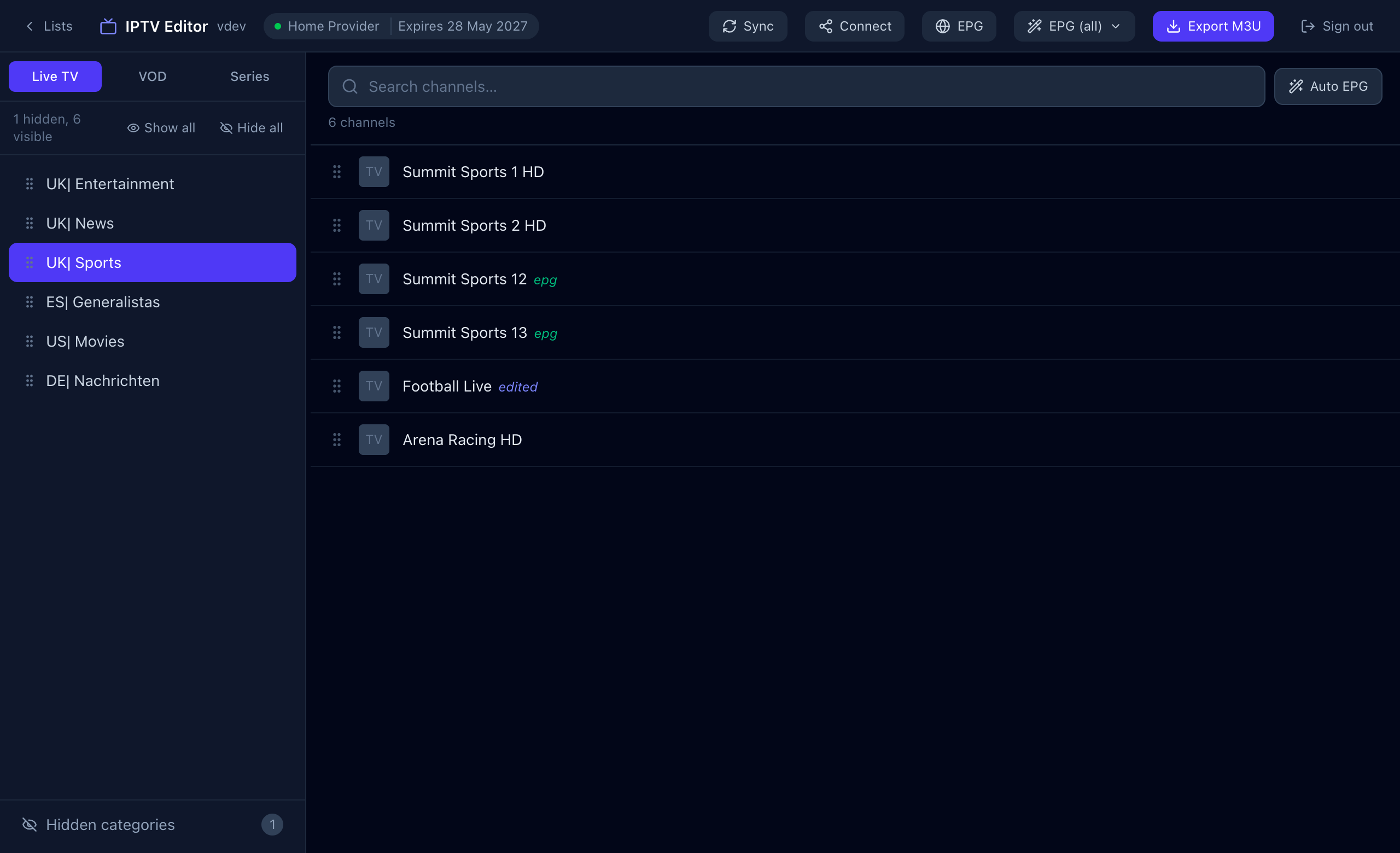
This is where you spend most of your time. The editor has a top bar with tools, a sidebar with categories, and a channel list. Every change is saved the moment you make it. There is no Save button.
The editor layout
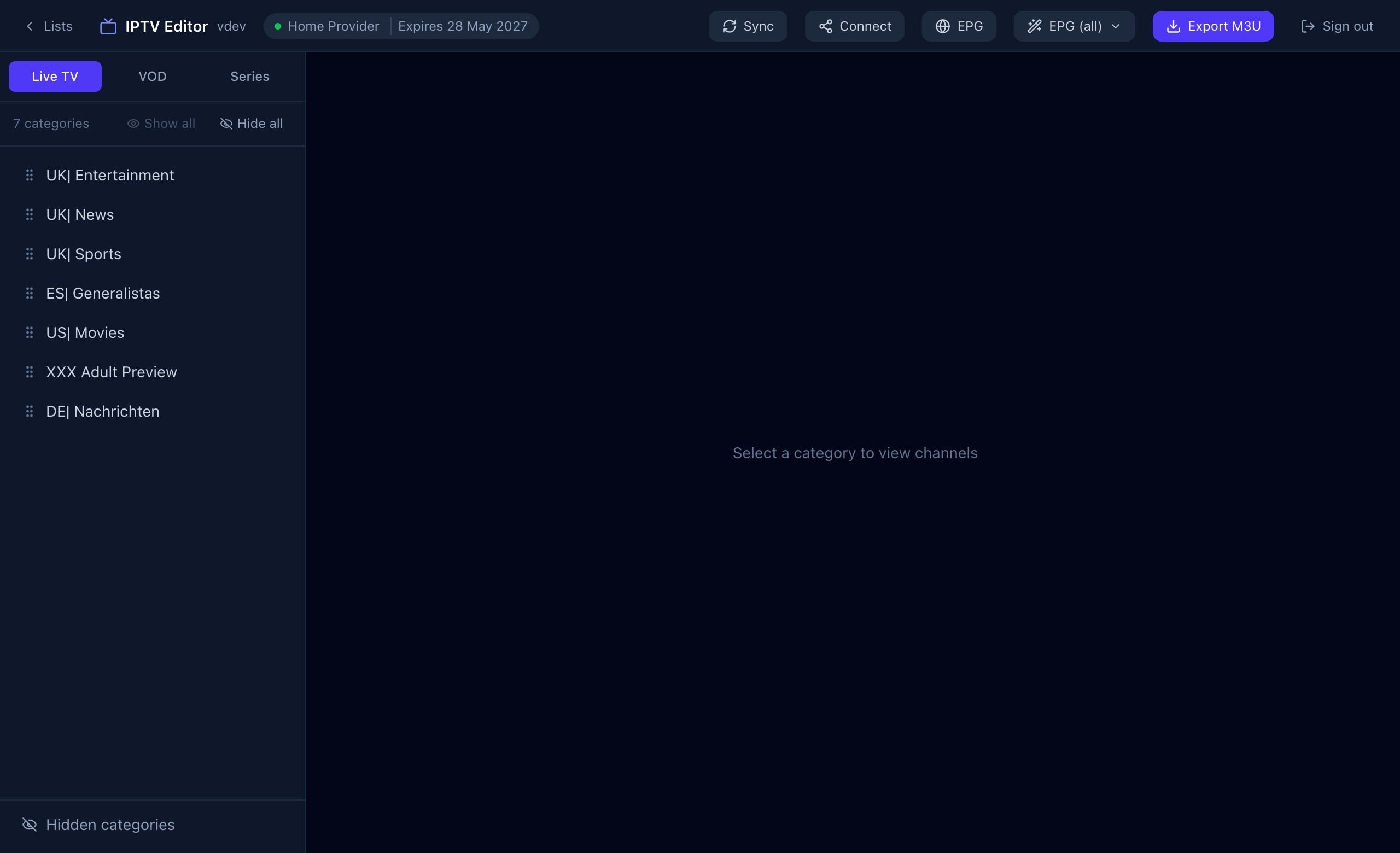
| Area | What it does |
|---|---|
| Lists | Back to the list screen. |
| Expiry badge | Next to the list name. Shows when the provider account expires, in red when it already has. |
| Sync | Re-downloads categories and channels from the provider and refreshes the expiry date. Use it when your provider adds or removes channels. Your edits are kept. |
| Connect | The login details for your TV app. See Connecting your TV. |
| EPG | Manage TV-guide sources. |
| EPG (all) | Assign or remove guide data for every visible channel at once. |
| Export M3U | Download your edited lineup as a playlist file. |
| Live TV / VOD / Series | Tabs at the top of the sidebar. Each has its own categories and channels. |
The divider between the sidebar and the channel list can be dragged to make the sidebar wider or narrower.
Live TV, VOD and Series
The three tabs work the same way. Live TV is television channels, VOD is movies, and Series is TV shows. Edits are stored separately for each, so hiding a category called “Documentary” under VOD does not hide a Live category with the same name. Export M3U exports the tab you are on. The TV guide applies to Live TV only.
Categories
Rename a category
- Hover the category in the sidebar and press the pencil (Rename).
- Type the new name and press Enter or the tick. Esc or the cross cancels.
Hide and show a category
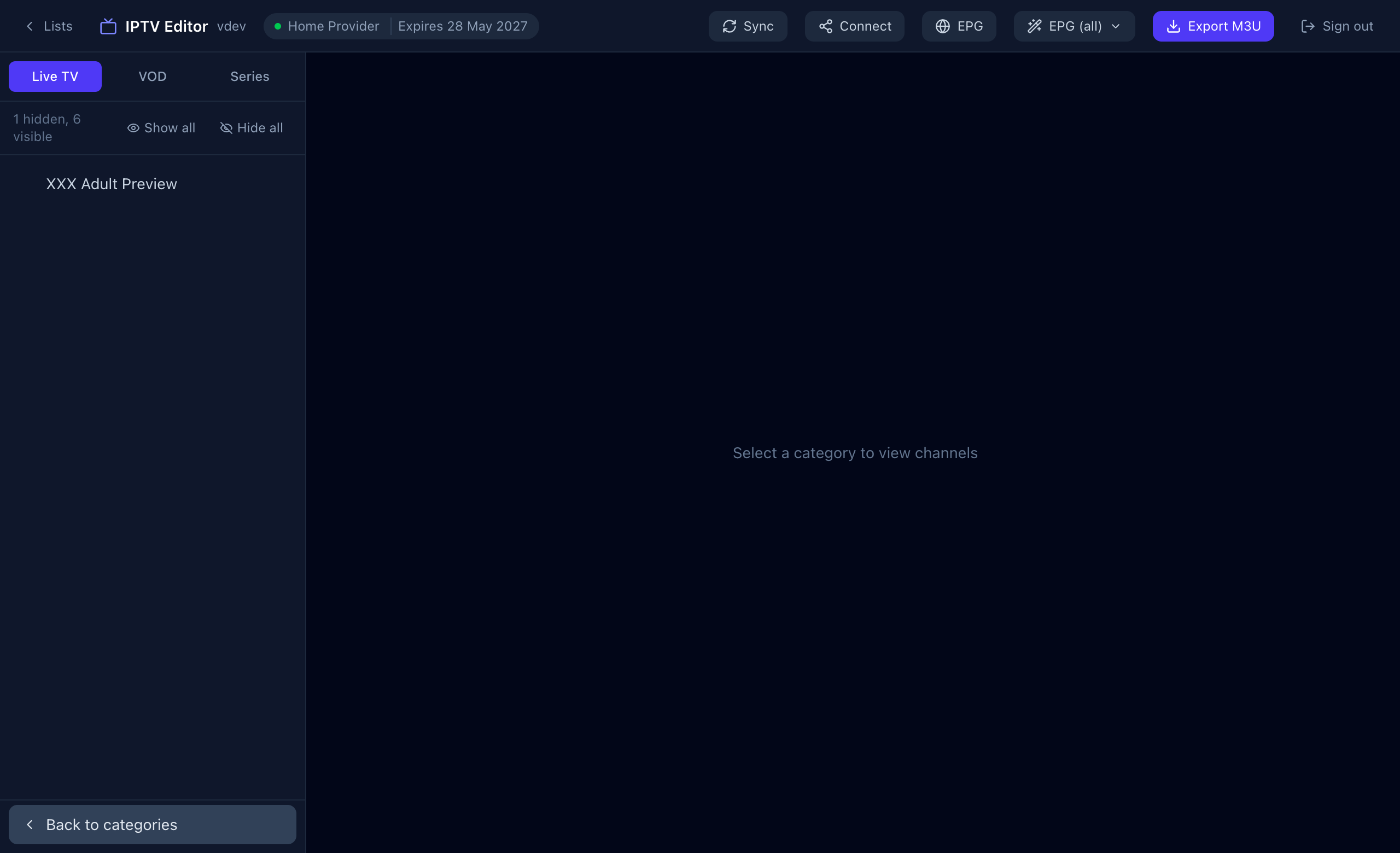
Press the eye on a category to hide it. A hidden category disappears from your TV app, from M3U exports and from the bulk EPG tools. It does not disappear from your provider, and you can bring it back at any time.
- The line under the tabs shows the counts, such as “1 hidden, 6 visible”.
- Hide all hides every category on the current tab. Show all restores them all.
- Hidden categories at the bottom of the sidebar switches to a view of only the hidden ones, with a badge showing how many there are. Press the eye on one to restore it, or Back to categories to leave.
Reorder categories
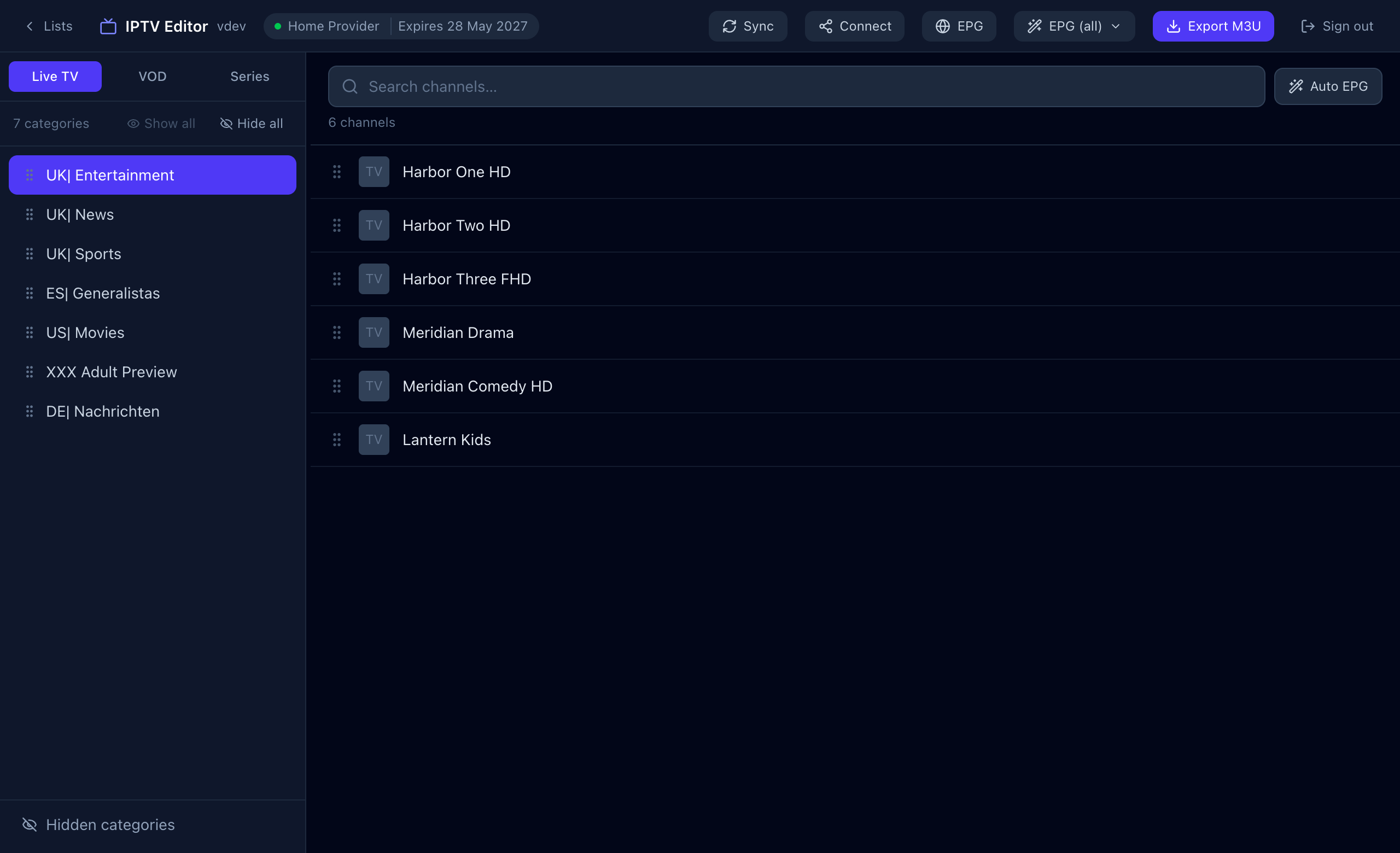
Drag a category by the six-dot handle on its left. The order is what your TV app shows. Hidden categories are kept at the end and cannot be reordered while you are in the hidden view.
Channels
Select a category to see its channels. Each row has a drag handle, the logo, the name and a few actions.
Rename a channel
- Double-click the channel name, or hover the row and press the pencil.
- Type the new name and press Enter (or Esc to cancel).
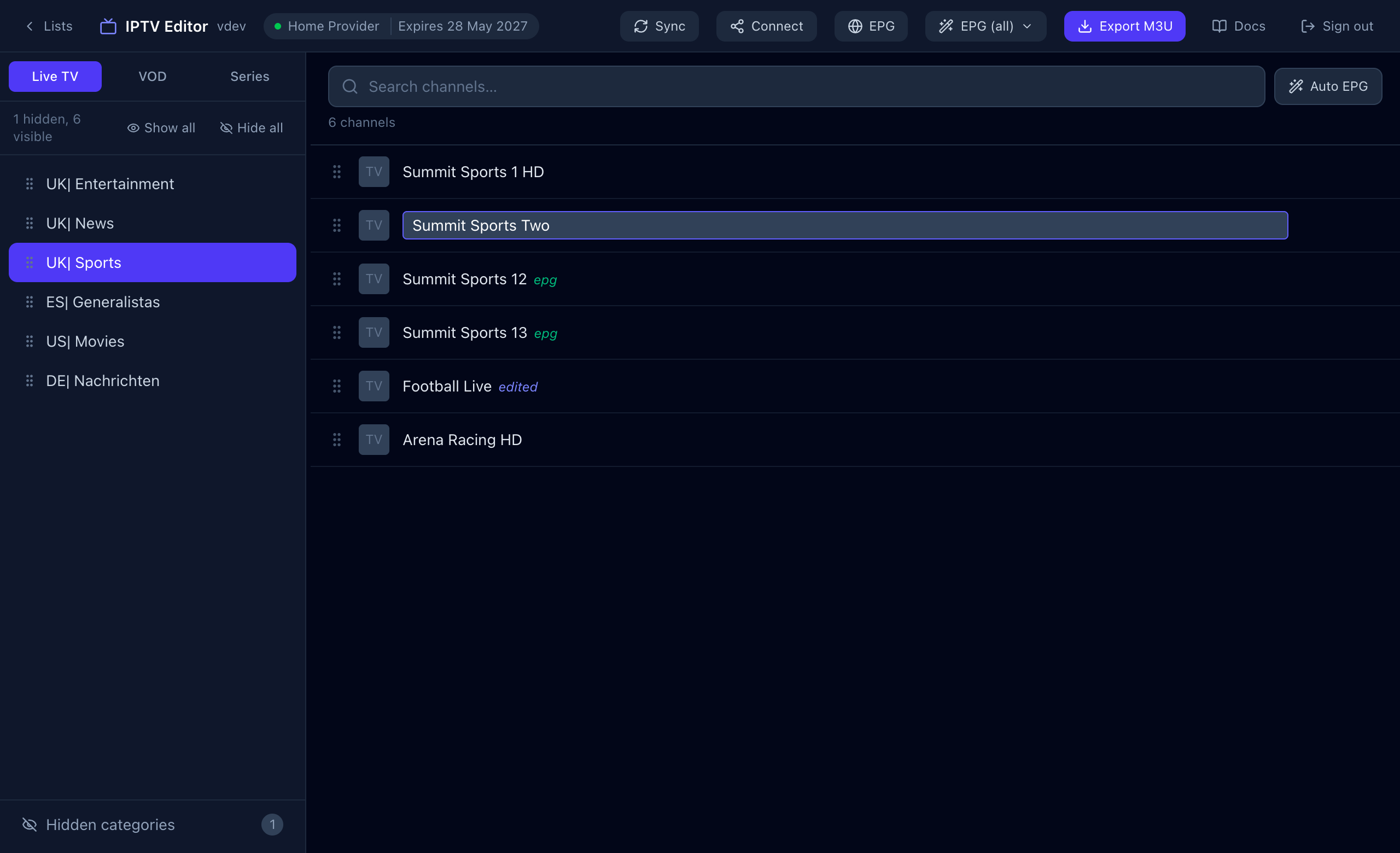
Renamed channels show an edited tag. To go back to the provider’s name, press the reset arrow on that row (Reset to default).
Hide and show a channel
Press the eye on the row. Hidden channels are dimmed in the editor so you can still find them, and are left out of your TV app and of M3U exports. Press the eye again to restore.
Reorder channels
Drag a row by its handle. The new order is saved immediately and is the order your TV app uses within that category.
Search
The search box above the channel list filters the current category as you type. It matches the name you see, so renamed channels are found by their new name. Clear the box to see everything again.
Good to know
- Edits survive a Sync. They are tied to the provider’s channel IDs, not to their position. If the provider removes a channel, its edit is simply unused.
- Edits are per list. To reuse them elsewhere, use Copy settings.
- Nothing changes at the provider. If you stop using Sift and log in to the provider directly, you see the original lineup.
- The text
editednext to a channel means a custom name,epgmeans a guide ID is assigned. Continue with TV guide (EPG).